Bun 配备了一个快速、内置的与 Jest 兼容的测试运行器。测试使用 Bun 运行时执行,并支持以下功能。
  • TypeScript 和 JSX
  • 生命周期钩子
  • 快照测试
  • UI 和 DOM 测试
  • --watch 的监视模式
  • --preload 的脚本预加载
Bun 旨在与 Jest 兼容,但并非所有功能都已实现。要跟踪兼容性,请参阅 此跟踪 问题

运行测试

terminal
bun test
测试使用类似 Jest 的 API 用 JavaScript 或 TypeScript 编写。有关完整文档,请参阅 编写测试
https://mintcdn.com/teemo/2s-4Z6VdGqiCeBNX/icons/typescript.svg?fit=max&auto=format&n=2s-4Z6VdGqiCeBNX&q=85&s=087b260066909db1cd3e9c7292bc34b2math.test.ts
import { expect, test } from "bun:test";

test("2 + 2", () => {
  expect(2 + 2).toBe(4);
});
运行器递归搜索工作目录中匹配以下模式的文件:
  • *.test.{js|jsx|ts|tsx}
  • *_test.{js|jsx|ts|tsx}
  • *.spec.{js|jsx|ts|tsx}
  • *_spec.{js|jsx|ts|tsx}
您可以通过向 bun test 传递额外的位置参数来筛选要运行的 测试文件。任何路径与筛选器匹配的测试文件都将运行。通常,这些筛选器将是文件或目录名;glob 模式尚不支持。
terminal
bun test <filter> <filter> ...
要按 测试名称 筛选,请使用 -t/--test-name-pattern 标志。
terminal
# 运行所有名称中包含"addition"的测试或测试套件
bun test --test-name-pattern addition
要运行测试运行器中的特定文件,请确保路径以 .// 开头,以将其与筛选器名称区分开。
terminal
bun test ./test/specific-file.test.ts
测试运行器在单个进程中运行所有测试。它加载所有 --preload 脚本(有关详细信息,请参见 生命周期),然后运行所有测试。如果测试失败,测试运行器将以非零退出代码退出。

CI/CD 集成

bun test 支持多种 CI/CD 集成。

GitHub Actions

bun test 自动检测是否在 GitHub Actions 中运行,并将 GitHub Actions 注释直接发送到控制台。 除了在工作流程中安装 bun 并运行 bun test 之外,无需其他配置。

如何在 GitHub Actions 工作流程中安装 bun

要在 GitHub Actions 工作流程中使用 bun test,请添加以下步骤:
.github/workflows/test.yml
jobs:
  build:
    name: build-app
    runs-on: ubuntu-latest
    steps:
      - name: Checkout
        uses: actions/checkout@v4
      - name: Install bun
        uses: oven-sh/setup-bun@v2
      - name: Install dependencies # (假设您的项目有依赖项)
        run: bun install # 如果愿意,您可以使用 npm/yarn/pnpm 替代
      - name: Run tests
        run: bun test
从此处,您将获得 GitHub Actions 注释。

JUnit XML 报告 (GitLab 等)

要将 bun test 与 JUnit XML 报告器一起使用,您可以将 --reporter=junit--reporter-outfile 结合使用。
terminal
bun test --reporter=junit --reporter-outfile=./bun.xml
这将继续像往常一样输出到 stdout/stderr,并在测试运行结束时还将 JUnit XML 报告写入给定路径。 JUnit XML 是 CI/CD 管道中报告测试结果的流行格式。

超时

使用 --timeout 标志指定以毫秒为单位的 每个测试 超时。如果测试超时,它将被标记为失败。默认值为 5000
terminal
# 默认值为 5000
bun test --timeout 20

并发测试执行

默认情况下,Bun 在每个测试文件内按顺序运行所有测试。您可以启用并发执行以并行运行异步测试,显著加快具有独立测试的测试套件。

--concurrent 标志

使用 --concurrent 标志在各自文件中并发运行所有测试:
terminal
bun test --concurrent
启用此标志后,除非明确标记为 test.serial,否则所有测试将并行运行。

--max-concurrency 标志

使用 --max-concurrency 标志控制同时运行的最大测试数:
terminal
# 限制为 4 个并发测试
bun test --concurrent --max-concurrency 4

# 默认值:20
bun test --concurrent
这有助于在运行许多并发测试时防止资源耗尽。默认值为 20。

test.concurrent

标记单个测试以并发运行,即使未使用 --concurrent 标志:
https://mintcdn.com/teemo/2s-4Z6VdGqiCeBNX/icons/typescript.svg?fit=max&auto=format&n=2s-4Z6VdGqiCeBNX&q=85&s=087b260066909db1cd3e9c7292bc34b2math.test.ts
import { test, expect } from "bun:test";

// 这些测试彼此并行运行
test.concurrent("concurrent test 1", async () => {
  await fetch("/api/endpoint1");
  expect(true).toBe(true);
});

test.concurrent("concurrent test 2", async () => {
  await fetch("/api/endpoint2");
  expect(true).toBe(true);
});

// 此测试按顺序运行
test("sequential test", () => {
  expect(1 + 1).toBe(2);
});

test.serial

强制测试按顺序运行,即使启用了 --concurrent 标志:
https://mintcdn.com/teemo/2s-4Z6VdGqiCeBNX/icons/typescript.svg?fit=max&auto=format&n=2s-4Z6VdGqiCeBNX&q=85&s=087b260066909db1cd3e9c7292bc34b2math.test.ts
import { test, expect } from "bun:test";

let sharedState = 0;

// 这些测试必须按顺序运行
test.serial("first serial test", () => {
  sharedState = 1;
  expect(sharedState).toBe(1);
});

test.serial("second serial test", () => {
  // 依赖于之前的测试
  expect(sharedState).toBe(1);
  sharedState = 2;
});

// 如果启用了 --concurrent,此测试可以并发运行
test("independent test", () => {
  expect(true).toBe(true);
});

// 链式测试限定符
test.failing.each([1, 2, 3])("chained qualifiers %d", input => {
  expect(input).toBe(0); // 预期每个输入都会失败
});

重新运行测试

使用 --rerun-each 标志多次运行每个测试。这对于检测不稳定或不确定的测试失败很有用。
terminal
bun test --rerun-each 100

随机化测试执行顺序

使用 --randomize 标志以随机顺序运行测试。这有助于检测依赖于共享状态或执行顺序的测试。
terminal
bun test --randomize
使用 --randomize 时,用于随机化的种子将在测试摘要中显示:
terminal
bun test --randomize
# ... 测试输出 ...
 --seed=12345
 2 pass
 8 fail
Ran 10 tests across 2 files. [50.00ms]

使用 --seed 的可重现随机顺序

使用 --seed 标志为随机化指定种子。这允许您在调试顺序相关故障时重现相同的测试顺序。
terminal
# 重现以前的随机运行
bun test --seed 123456
--seed 标志意味着 --randomize,因此您无需同时指定两者。使用相同的种子值将始终产生相同的测试执行顺序,从而更容易调试由测试相互依赖引起的间歇性故障。

使用 --bail 退出

使用 --bail 标志在预定数量的测试失败后提前中止测试运行。默认情况下,Bun 将运行所有测试并报告所有失败,但在某些 CI 环境中,最好提前终止以减少 CPU 使用量。
terminal
# 在 1 次失败后退出
bun test --bail

# 在 10 次失败后退出
bun test --bail=10

监视模式

类似于 bun run,您可以向 bun test 传递 --watch 标志以监视更改并重新运行测试。
terminal
bun test --watch

生命周期钩子

Bun 支持以下生命周期钩子:
钩子描述
beforeAll在所有测试之前运行一次。
beforeEach在每个测试之前运行。
afterEach在每个测试之后运行。
afterAll在所有测试之后运行一次。
这些钩子可以在测试文件内部定义,也可以在使用 --preload 标志预加载的单独文件中定义。
terminal
bun test --preload ./setup.ts
有关完整文档,请参阅 测试 > 生命周期

模拟

使用 mock 函数创建模拟函数。
https://mintcdn.com/teemo/2s-4Z6VdGqiCeBNX/icons/typescript.svg?fit=max&auto=format&n=2s-4Z6VdGqiCeBNX&q=85&s=087b260066909db1cd3e9c7292bc34b2math.test.ts
import { test, expect, mock } from "bun:test";
const random = mock(() => Math.random());

test("random", () => {
  const val = random();
  expect(val).toBeGreaterThan(0);
  expect(random).toHaveBeenCalled();
  expect(random).toHaveBeenCalledTimes(1);
});
或者,您可以使用 jest.fn(),它的行为相同。
https://mintcdn.com/teemo/2s-4Z6VdGqiCeBNX/icons/typescript.svg?fit=max&auto=format&n=2s-4Z6VdGqiCeBNX&q=85&s=087b260066909db1cd3e9c7292bc34b2math.test.ts
import { test, expect, mock } from "bun:test"; 
import { test, expect, jest } from "bun:test"; 

const random = mock(() => Math.random()); 
const random = jest.fn(() => Math.random()); 
有关完整文档,请参阅 测试 > 模拟

快照测试

bun test 支持快照。
https://mintcdn.com/teemo/2s-4Z6VdGqiCeBNX/icons/typescript.svg?fit=max&auto=format&n=2s-4Z6VdGqiCeBNX&q=85&s=087b260066909db1cd3e9c7292bc34b2math.test.ts
// toMatchSnapshot 的示例用法
import { test, expect } from "bun:test";

test("snapshot", () => {
  expect({ a: 1 }).toMatchSnapshot();
});
要更新快照,请使用 --update-snapshots 标志。
terminal
bun test --update-snapshots
有关完整文档,请参阅 测试 > 快照

UI 和 DOM 测试

Bun 与流行的 UI 测试库兼容: 有关完整文档,请参阅 测试 > DOM 测试

性能

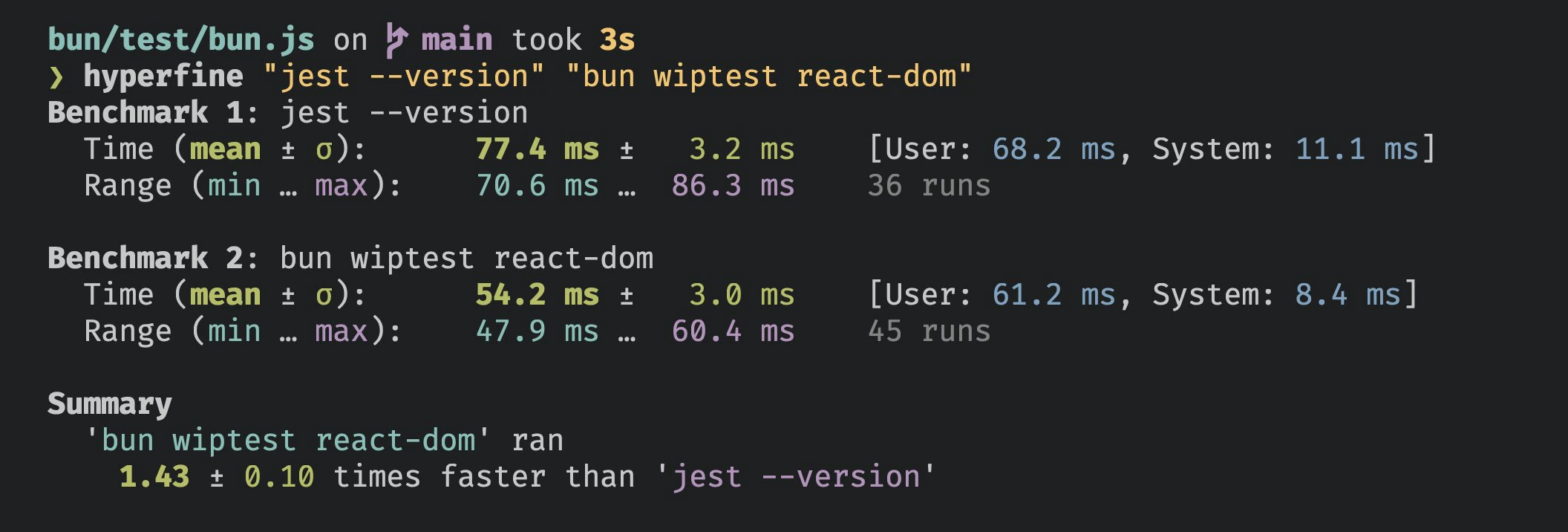
Bun 的测试运行器很快。
运行 266 个 React SSR 测试比 Jest 打印其版本号更快。

AI 代理集成

将 Bun 的测试运行器与 AI 编码助手一起使用时,您可以启用更安静的输出以提高可读性并减少上下文噪音。此功能在保留基本故障信息的同时最小化测试输出冗长度。

环境变量

设置以下任意环境变量以启用 AI 友好输出:
  • CLAUDECODE=1 - 用于 Claude Code
  • REPL_ID=1 - 用于 Replit
  • AGENT=1 - 通用 AI 代理标志

行为

检测到 AI 代理环境时:
  • 仅详细显示测试失败
  • 隐藏通过、跳过和待办测试指示器
  • 摘要统计保持不变
terminal
# 示例:为 Claude Code 启用静默输出
CLAUDECODE=1 bun test

# 仍显示失败和摘要,但隐藏冗长的通过测试输出
此功能在 AI 辅助开发工作流中特别有用,因为减少的输出冗长度提高了上下文效率,同时保持了对测试失败的可见性。

CLI 用法

bun test <patterns>

执行控制

--timeout
number
default:"5000"
设置每个测试的超时时间(毫秒)(默认 5000)
--rerun-each
number
重新运行每个测试文件 NUMBER 次,有助于捕获某些错误
--concurrent
boolean
将所有测试视为 test.concurrent() 测试
--randomize
boolean
随机顺序运行测试
--seed
number
设置测试随机化的随机种子
--bail
number
default:"1"
NUMBER 次失败后退出测试套件。如果您未指定数字,则默认为 1。
--max-concurrency
number
default:"20"
同时执行的最大测试数(默认 20)

测试过滤

--todo
boolean
包括标记为 test.todo() 的测试
--test-name-pattern
string
仅运行名称与给定正则表达式匹配的测试。别名:-t

报告

--reporter
string
测试输出报告格式。可用:junit(需要 —reporter-outfile)、dots。默认: 控制台输出。
--reporter-outfile
string
报告格式的输出文件路径(与 —reporter 一起使用)
--dots
boolean
启用点状报告。—reporter=dots 的简写

覆盖率

--coverage
boolean
生成覆盖率档案
--coverage-reporter
string
default:"text"
text 和/或 lcov 报告覆盖率。默认为 text
--coverage-dir
string
default:"coverage"
覆盖率文件的目录。默认为 coverage

快照

--update-snapshots
boolean
更新快照文件。别名:-u

示例

运行所有测试文件:
terminal
bun test
运行所有文件名中包含 “foo” 或 “bar” 的测试文件:
terminal
bun test foo bar
运行所有测试文件,但只包括名称中包含 “baz” 的测试:
terminal
bun test --test-name-pattern baz